
The Ticketing System
The Ticketing system allows our audience to purchase tickets online from the website. This is the most complex area of the site since it requires integration to a payment system.
How it works
The ticketing system uses the Event Tickets WordPress plugin. This plugin was chosen for several reasons:
- It works visually with the block editor in WordPress
- Visitors stay within our site during the ordering process rather than being re-directed to a third party site
At the time of creation it did however have a couple of issues which are documented later in ‘Adding tickets to an event’
The Ticket Ordering Process
When a visitor orders tickets for a concert several things happen:
- Two emails are sent to the purchaser. One is the tickets and the other is a receipt
- A third email is sent to the choir ticket manager (tickets@st-georges-singers.org.uk)
- The order is added to the Orders page (Tickets > Orders from the Site Dashboard)
- The purchaser is added to the Attendees page (Tickets > Attendees from the Site Dashboard).
- The transaction is added to the Payment provider (Stripe).
- Stripe is a separate payment provider.
- By logging into Stripe, transactions can be monitored and refunded if necessary
Ticketing Tasks
Managing Tickets at a Concert
With eTickets there will need to be a mechanism for checking tickets on arrival at a concert. The easiest way is to have a printed list and check people off as they arrive.
To get a printed list, visit the page for the event while logged into WordPress. When logged in an additional bar appears along the top of the page:

Click Attendees and a page with all tickets for the event will be displayed:
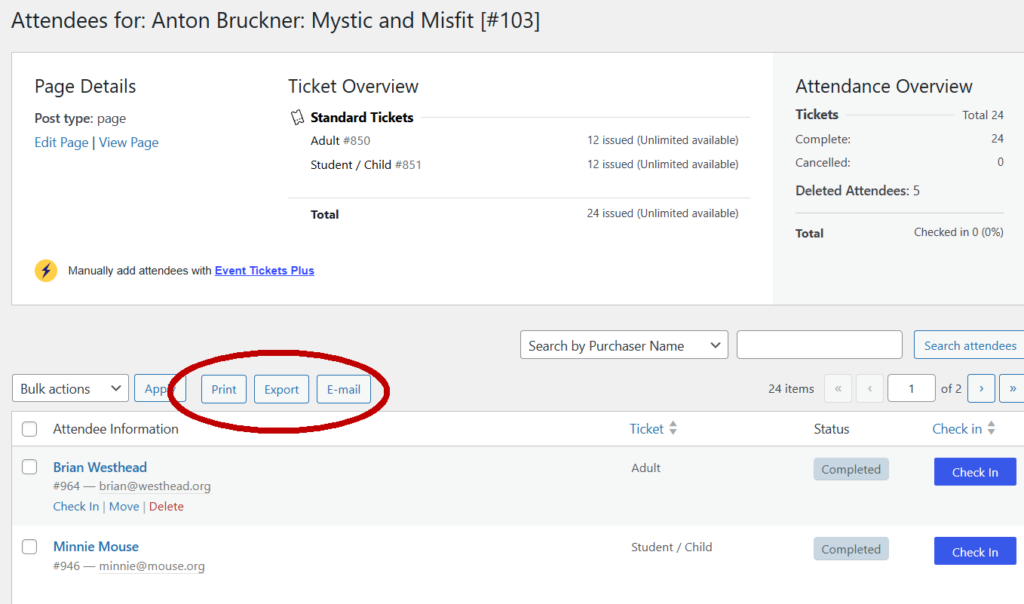
From here is is possible to Print, Export (to .csv file) or email the list. As a recommendation:
- Export to a .csv file
- Edit the file (probably in Excel)
- Re-format by removing or hiding the (many) unnecessary columns
- Print the spreadsheet (it will be much more compact and easy to use than the .csv)
Note: The attendees screen above has a ‘Check-in’ button if you want to do this online but a good internet connection will be required at the venue.
Check-in by QR Code
The paid-for version of Event Tickets allows check-in by QR Code. The tickets would be issued with QR codes and an app used to check them in. It is probably quicker to ask for the name and find in on a sheet however!
Fixing things that can go wrong
Incorrect email address
The Ticket order form allows the purchaser to enter an email address but there is currently no check that this is valid. It is therefore possible (and likely) that some tickets will go astray. In this situation the Ticket Manager can recover the situation:
- Find the order on Tickets > Order (the ticket manager will have received an email confirming the order which will contain an Order Number)
- From here it is possible to link the the Stripe transaction and issue a refund
- There is no mechanism to edit the error in the free version of the plugin. The paid version has the ability to edit and re-issue the ticket.
Adding tickets to an event
This is the process to add tickets:
- Edit the Concert page for the event
- At the end add a Tickets block
- Use ‘Add Ticket’ in the block to add each category of ticket
- We are presently not using limits as they have to be managed with paper tickets in any case
- The start/finish dates for tickets need to be assigned. Suggest sale should end a day before the event to allow the attendee list to be created
Issues
The following issues were discovered during development with Event Tickets. None of these are blockers but a lot of time will be saved by knowing this!
- When adding a Tickets block to a page with Ticket children it is important to save the page before making any other page edits (such as renaming the page or moving the Tickets block in the block structure). Failure to do this results in ‘orphaned’ tickets that are irretrievable.
- To edit the tickets use the basic Pages > page name rather than Appearance > Editor > Pages. The block is reported as unsupported in the Appearance editor
- When trying out tickets with the Plugin in Test Mode do not use the same browser to order the tickets – they go to the logged in user rather than the one filling out the form.